
Audio Converter
Convert audio files right in your browser. Drop in an MP3, M4A/AAC, OGG, Opus, FLAC or WAV file (whatever your browser can decode), choose the output — WAV at 16-bit, 24-bit or 32-bit float, any common sample rate, mono or stereo — trim the start and end, add fades or normalise the volume, and download. Nothing is uploaded: the conversion happens on your device.
- Free to use
- No sign-up
- Runs in your browser
Audio converter
Audio Formats Reference Pack
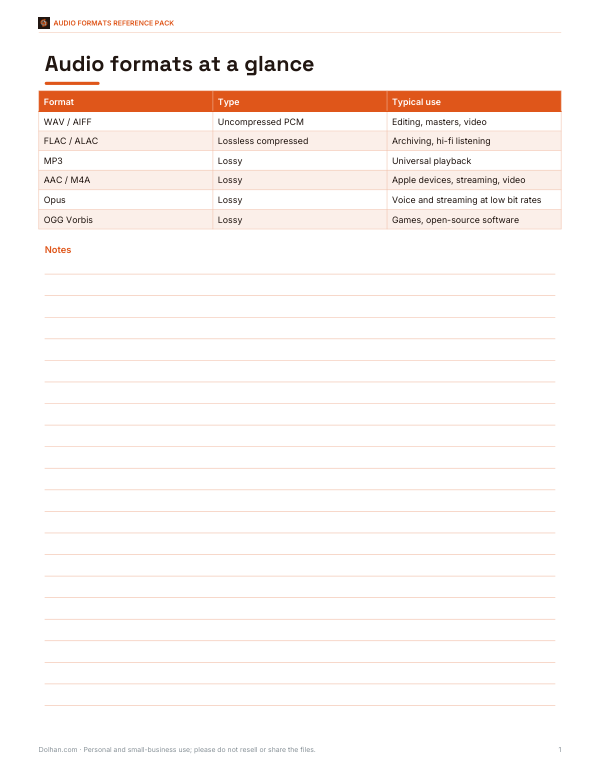
Printable audio format and settings cheat sheet, a WAV file size table, a podcast and voice recording checklist, and an Excel audio file size calculator.
- Format cheat sheet (PDF)
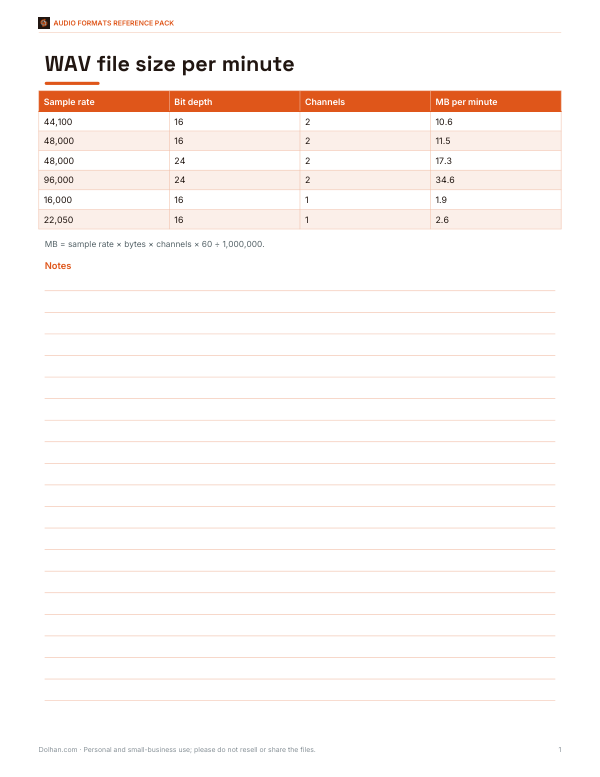
- WAV size table (PDF)
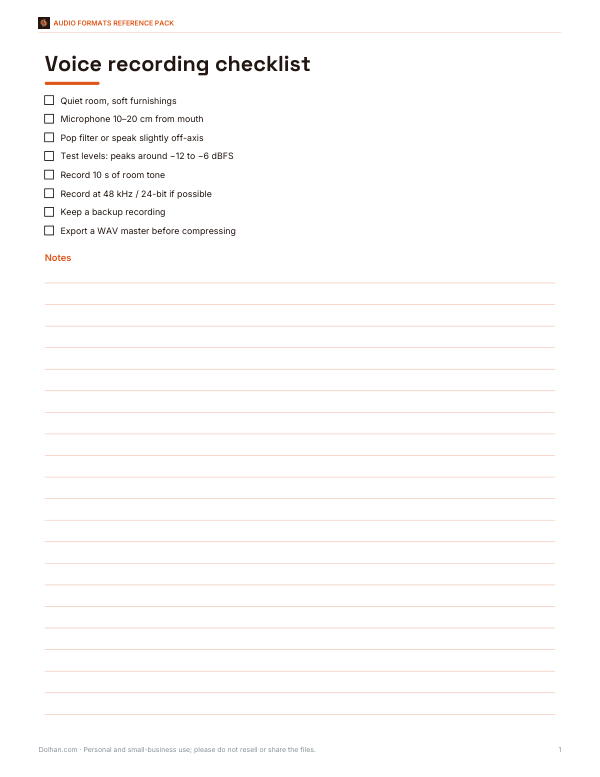
- Recording checklist (PDF, DOCX)
- Size calculator (XLSX)
Formats: PDF, DOCX, XLSX. Instant download after payment (link valid 72 hours, up to 5 downloads). AI-assisted: the templates were drafted with AI help and reviewed and laid out before publishing.
$5.00 USD, one-time 4 files · about $1.25 each
- Instant download
- 7-day refund
- Secure checkout by Stripe
7-day money-back guarantee. Full refund within 7 days of purchase, even after you download.
Free sample: Audio Format Cheat Sheet (PDF, 54 KB)
Full refund within 7 days — see the refund policy and license.
Free printables
Single sheets you can print right now, no sign-up. The full pack adds every sheet in one download plus the editable files.
 Printable Audio File Size Calculator
What this converter does — and doesn’t
The converter decodes any audio format your browser supports and writes it out as uncompressed WAV, which almost every audio editor, video editor, DAW, transcription service and hardware device accepts. It can also re-encode to WebM with the Opus codec using the browser’s built-in recorder, which plays in real time, so it suits clips rather than long recordings. It does not create MP3 or AAC files: those encoders are not built into browsers. If you need MP3, use a desktop tool such as Audacity or ffmpeg after converting.
Which input formats work?
| Format | Chrome / Edge | Firefox | Safari |
|---|---|---|---|
| MP3 | Yes | Yes | Yes |
| WAV | Yes | Yes | Yes |
| M4A / AAC | Yes | Usually | Yes |
| OGG Vorbis | Yes | Yes | Recent versions |
| Opus / WebM audio | Yes | Yes | Recent versions |
| FLAC | Yes | Yes | Yes |
| ALAC, WMA, AIFF | Varies | Varies | ALAC/AIFF usually |
Support depends on the browser version and operating system. If a file will not decode, try a different browser.
Choosing WAV settings
| Setting | Choose | Why |
|---|---|---|
| 16-bit, 44.1 kHz | Music, CDs, general use | The CD standard; widely compatible |
| 16-bit or 24-bit, 48 kHz | Video projects | Matches video editing timelines |
| 24-bit | Editing and mixing | More headroom for processing |
| 32-bit float | Intermediate files in a DAW | Cannot clip during processing; largest files |
| 16 kHz mono | Speech recognition, transcription, telephony | Small files; enough for voice |
Converting a compressed file such as an MP3 to WAV does not restore quality lost during MP3 encoding — it only makes the file uncompressed and easier to edit. Increasing the sample rate or bit depth of a low-quality source does not improve it either.
WAV file sizes
Uncompressed audio size = sample rate × bytes per sample × channels × seconds. One minute of 16-bit, 44.1 kHz stereo is 44,100 × 2 × 2 × 60 ≈ 10.6 MB. The same minute in 16 kHz mono 16-bit is about 1.9 MB. A 4 MB MP3 of a 4-minute song becomes roughly 42 MB as a CD-quality WAV — expected, because WAV stores every sample.
Trimming, fading and normalising
- Trim — set start and end times in seconds to cut silence, intros or a section for a ringtone or clip.
- Fade — a short fade in and out (0.2–2 s) avoids clicks at cut points and sounds more natural.
- Normalise — scales the whole file so the loudest peak reaches −1 dBFS, making quiet recordings louder without clipping. It does not compress or change perceived loudness between loud and quiet passages.
- Mono — mixes channels together; good for speech and halves the file size.
Worked example: preparing a voice memo for transcription
A 12-minute interview recorded as M4A on a phone is 11 MB. Converting to WAV with 16 kHz sample rate, mono and 16-bit gives a file of about 23 MB that transcription tools accept, trimmed from 0:04 to the end to remove fumbling at the start, with normalisation lifting the quiet recording. The whole process runs locally, so the interview never leaves the laptop.
Privacy and performance
Files are read and processed entirely in your browser using the Web Audio API — nothing is uploaded. Long files use a lot of memory because decoded audio is held uncompressed: an hour of stereo audio at 48 kHz needs over 1 GB during conversion. For very long recordings, split them first or use a desktop tool. WebM/Opus output is recorded in real time, so a 5-minute clip takes about 5 minutes.
Common uses
- Converting phone recordings to WAV for editing software.
- Preparing 16 kHz mono files for speech-to-text.
- Matching audio to 48 kHz for video projects.
- Cutting a short clip for a presentation, ringtone or alert sound.
- Making FLAC or OGG files playable in software that only reads WAV.
- Normalising quiet podcast or lecture recordings.
Stereo, mono and channels
Stereo files have separate left and right channels; mono files have one. Converting stereo to mono averages the two channels, which is ideal for speech but can make some music sound narrower, and occasionally quieter if the channels contain out-of-phase sounds. Converting mono to stereo copies the same signal to both sides — the file is twice the size but sounds identical. Most voice recordings, podcasts with a single microphone and phone calls are best kept in mono.
Copyright
Only convert audio you own or have permission to use. Converting a file’s format does not change who owns its copyright.
Frequently asked questions
Can this convert to MP3?
No. Browsers do not include an MP3 encoder; convert to WAV here and use a desktop tool for MP3.
Are my files uploaded?
No, conversion happens in your browser.
Why is the WAV file so much bigger?
WAV is uncompressed; one minute of CD-quality stereo is about 10.6 MB.
Does converting MP3 to WAV improve quality?
No, it cannot restore detail removed by MP3 compression.
What sample rate should I use for video?
48 kHz.
Can I trim the silence at the start of a recording?
Yes, set the start time in seconds before converting; add a short fade in to avoid a click.
Does it work on phones?
On most modern mobile browsers, yes, though very long files may run out of memory.
What is 32-bit float WAV for?
Editing and mixing: it has huge headroom so levels can be adjusted later without clipping.
Why can’t my browser open a file?
Format support differs between browsers; try another browser.